

NAB EFTPOS + Ukilu
Your NAB Move 5000 works with Ukilu POS. The exact total goes from the sale to the terminal through Linkly Cloud — no retyping, and refunds go back the same way.
Terminals
Which NAB terminals work with Ukilu
Ukilu pairs over Linkly Cloud, so the first row is the one that matters: Move 5000.
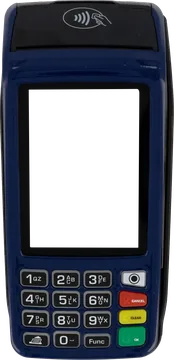 Move 5000 | |
|---|---|
| Linkly Cloud — works with Ukilu | |
| On-premises | |
| Core payments | |
| Pay@table | |
| Tipping | |
| PLB@POS | |
| Oracle |
Set-up
Set up NAB EFTPOS with Ukilu
- 01
Call NAB
Ring the NAB merchant line on 1300 338 767 and ask for a Move 5000 with Linkly Cloud turned on. Tell them your POS is Ukilu.
- 02
Get your Linkly Cloud login
NAB or Linkly sends you a Cloud username and password. Keep them handy — they are not your Ukilu login.
- 03
Show the pair code on the Move 5000
Open the terminal's pairing screen — on most terminals FUNC, then 8880 — and leave the 6-digit code showing. If that code doesn't work, NAB can tell you the right one for your model.
- 04
Pair it in Ukilu
On the iPad: More → Settings → Integrations → Linkly EFTPOS. Enter your manager PIN, then the Cloud username, password and pair code.
- 05
Take a $1 test sale
At Checkout charge $1.00 by card — the terminal asks for the card straight away. Refund it from Report when you're done.
Pairing again after swapping a terminal or iPad, and what each error means: full pairing guide.
Works today
- Purchases — the total goes from the sale to the terminal, no retyping
- Refunds sent to the terminal from Ukilu
- Approved, declined and cancelled results come back into the sale
- If the iPad loses connection mid-payment, Ukilu recovers the last transaction
- No PC or extra software in the shop — the terminal talks to Linkly over the internet
Not through Linkly yet
- Cash out on the terminal
- Tipping and surcharging handled by the terminal itself
- Terminals that connect on-premises only
FAQ
NAB EFTPOS questions
Yes. The NAB Move 5000 connects to Ukilu through Linkly Cloud, so the sale total goes straight from Ukilu to the terminal.
Call NAB on 1300 338 767 and ask for a Move 5000 with Linkly Cloud turned on, set up for Ukilu as your POS. They give you a Linkly Cloud username and password, which you enter in Ukilu with the pair code from the terminal.
Yes, if it is a Move 5000 — ask NAB to turn Linkly Cloud on for it. Any other model has to be swapped for one of these first.
Add the tip in Ukilu at checkout and Ukilu sends the total including the tip to the terminal. Tipping and surcharging handled by the terminal itself aren't used through Linkly yet.
For a terminal fault or your Linkly Cloud login, call NAB on 1300 338 767. For anything in the Ukilu app, email support@ukilu.com with your shop name and the message you see.
Other banks and providers
- CommBank EFTPOS
- Westpac EFTPOS
- St.George EFTPOS
- Bank of Melbourne EFTPOS
- BankSA EFTPOS
- Suncorp EFTPOS
- Zeller EFTPOS
- Wpay EFTPOS
- Live Payments EFTPOS
- Nuvei EFTPOS
- Fiserv EFTPOS
- Verifone NZ EFTPOS
Not with a Linkly bank? KPay · Tyro · all banks and terminals
Terminals and features from Linkly bank & terminal support, checked 14 Oct 2026. Logos and terminal images belong to their owners.
Bookings, checkout and your NAB terminal — one system.
Pick your plan, pair your terminal, and talk to a real person whenever you need one.